Set up an Account


Set up a new account in Outlook Express
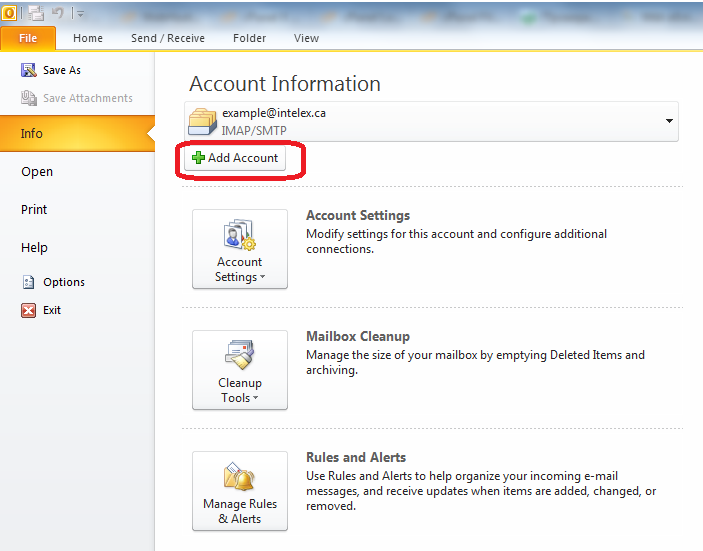
STEP.1 Open the Outlook, then click on "File" in the menu bar and choose "Add Account".
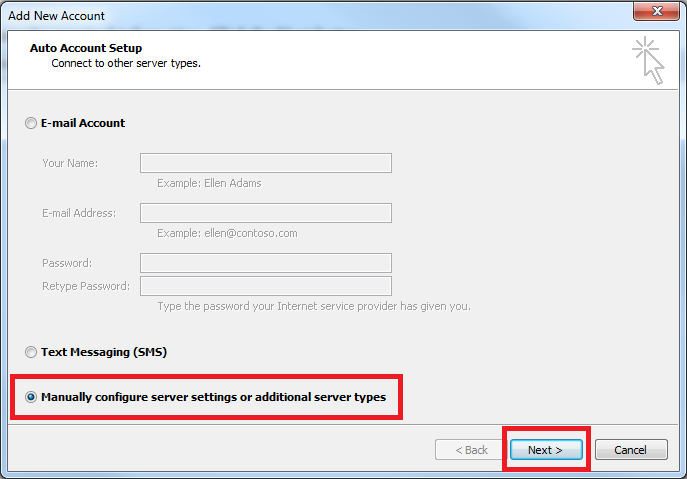
STEP.2 Choose "Manually configure server settings or additional server types" and click Next.
STEP.3 Choose "Interner E-mail" and click Next.
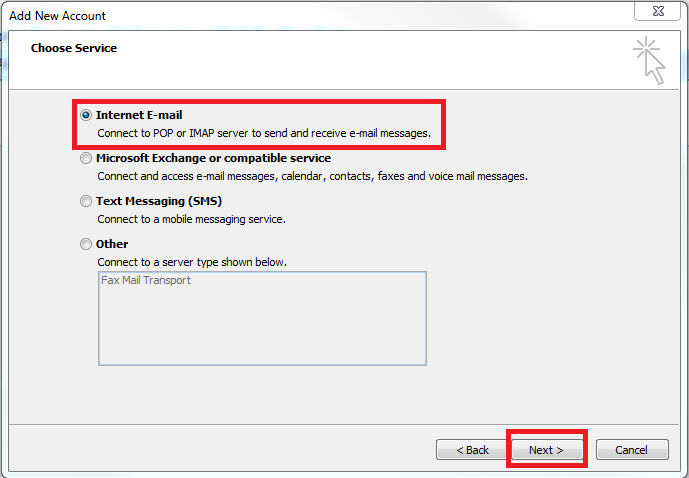
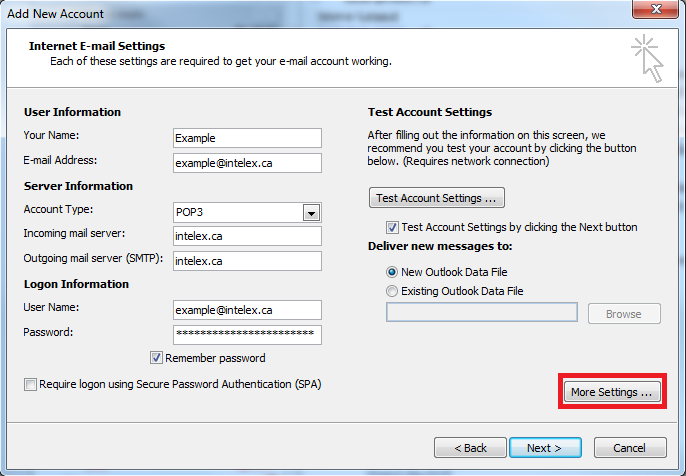
STEP.4 Fill all required fields and click More Settings.
Your Name: Any name;
E-mail Address: Your email address;
Account Type: POP3;
Incoming mail server: Your domain;
Outgoing mail server (SMTP): Your domain;
User name: Your email address;
Password: Your password;
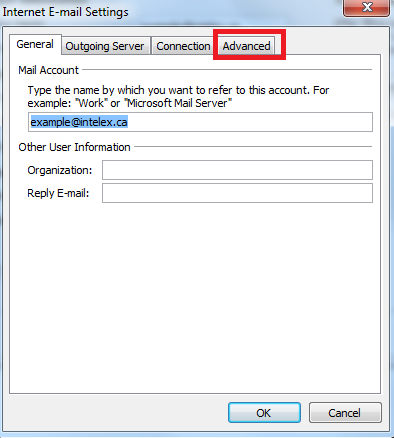
STEP.5 Click the Advanced tab.
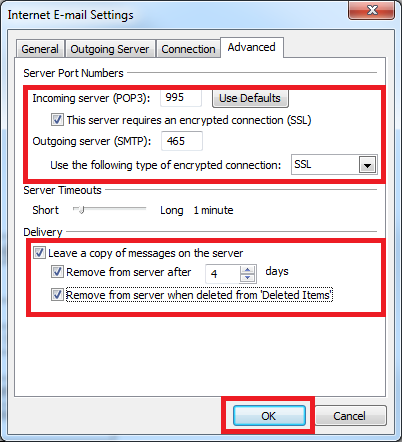
STEP.6 In incoming server(POP3) field type "995" and select "This server requires an encrypted connection".
Outgoing server (SMTP) fill by "465" and select "SSL" in "Use the following type of encrypted connection" field.
Choose "Leave a copy of messages on the server".
Also check "remove from server after some days" and "Remove from server when deleted from Deleted Items".
Please note that removing emails from the server does NOT remove them from your outlook.
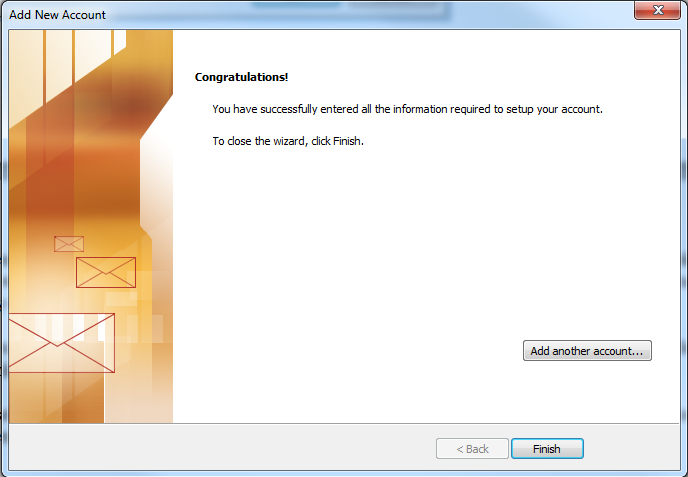
STEP.7 Finish.
Set up a new email account in iPhone
STEP.1
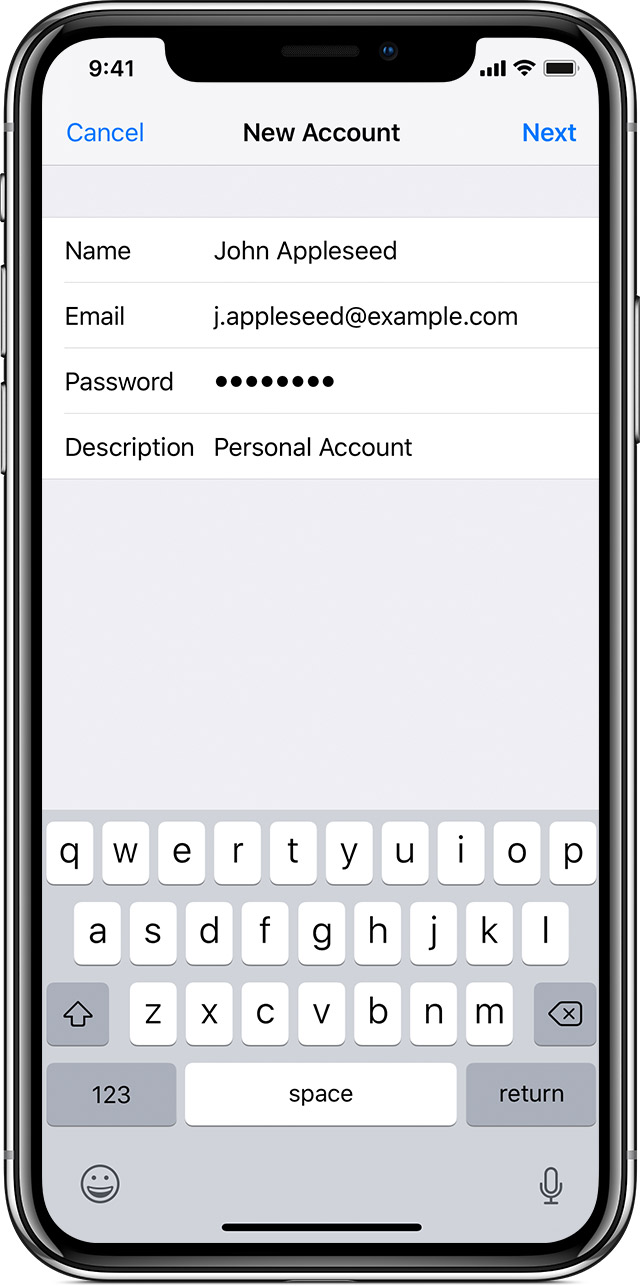
- Go to Settings > Passwords & Accounts, then tap Add Account.
- Tap Other, then tap Add Mail Account.
- Enter your name, email address, password, and a description for your account.
- Tap Next. Mail will try to find the email settings and finish your account setup. If Mail finds your email settings, tap Done to complete your account setup.
Name: Any_Name
Address: user@YourDomain.com
Password: Password of user@YourDomain.com
Description: user@YourDomain.com
Address: user@YourDomain.com
Password: Password of user@YourDomain.com
Description: user@YourDomain.com
STEP.2 If Mail can't find your email settings, then you need to enter them manually. Tap Next, then follow these steps:
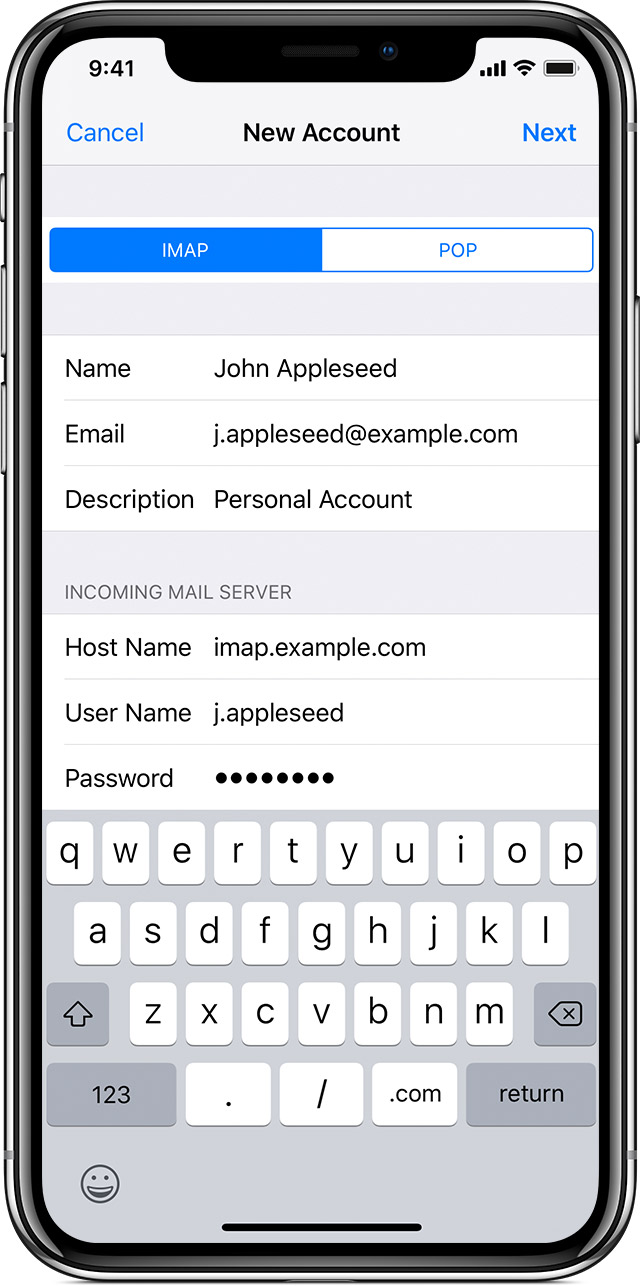
- Choose POP or POP3 for your new account.
- Enter the information for Incoming Mail Server and Outgoing Mail Server. Then tap Next.
- If your email settings are correct, tap Save to finish. If the email settings are incorrect, you'll be asked to edit them.
Incoming Mail Server:
Host Name: hostname.com //provided by INTELEX
User Name: user@YourDomain.com //not user
Password: Password of user@YourDomain.com
Outgoing Mail Server:
Host Name: hostname.com //provided by INTELEX
User Name: user@YourDomain.com //not user
Password: Password of user@YourDomain.com
Host Name: hostname.com //provided by INTELEX
User Name: user@YourDomain.com //not user
Password: Password of user@YourDomain.com
Outgoing Mail Server:
Host Name: hostname.com //provided by INTELEX
User Name: user@YourDomain.com //not user
Password: Password of user@YourDomain.com
Set up a new account on Android
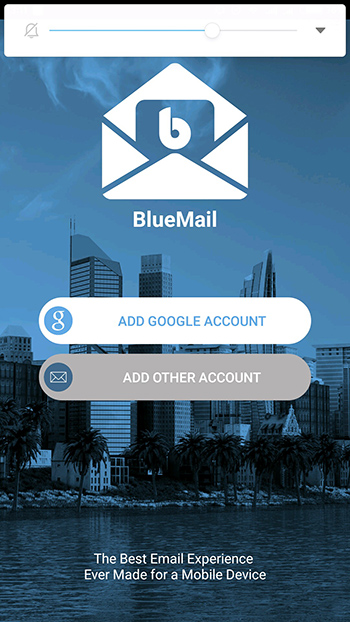
STEP.1 Download and install “Blue Mail” client from Play Market
https://play.google.com/store/apps/details?id=me.bluemail.mail&hl=en
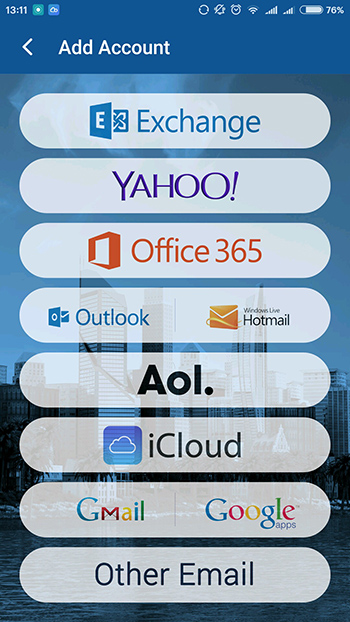
Select “Add other account”
STEP.2 Select “Other email”
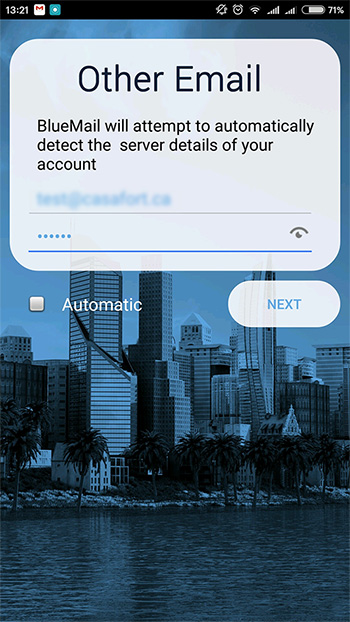
STEP.3 Input “Email address” and “Password”. After that uncheck “automatic” and click “NEXT”
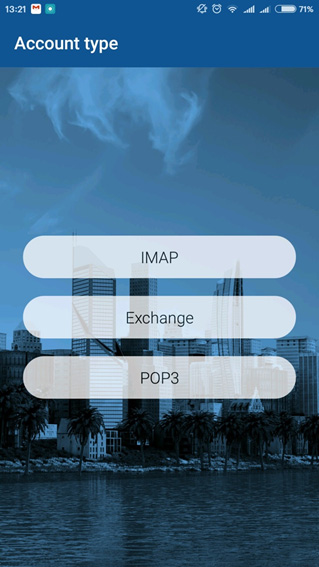
STEP.4 Select “POP3”
STEP.5 Fill in the information for Incoming server settings accordingly:
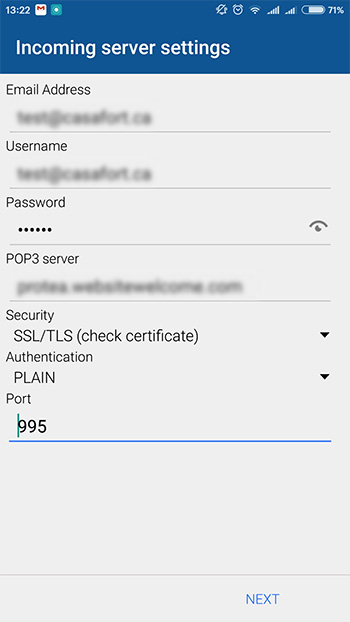
- Email Address: user@YourDomain.com
- Username: user@YourDomain.com
- Password: Password of user@YourDomain.com
- POP3 server: server.com //provided by INTELEX
- Security: SSL/TLS (check certificate)
- Authentication: PLAN
- Port: 995
-
Click "NEXT"
STEP.6 Fill in the information for Outgoing server settings accordingly:
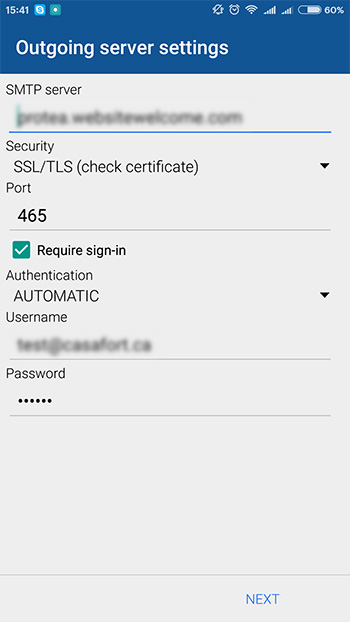
- SMTP server: server.com //provided by INTELEX
- Security: SSL/TLS (check certificate)
- Authentication: AUTOMATIC
- Port: 995
- Username: user@YourDomain.com
- Password: Password of user@YourDomain.com
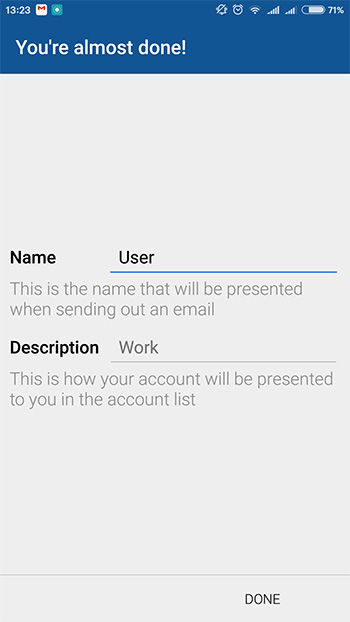
STEP.7 Input “Name” and “Description” and click “DONE”.